I’ll never forget staring at my screen at 3 AM, watching a green candle turn red because my laptop decided to hibernate.
The setup had seemed fine earlier that day. Python script running, API keys configured, test trade successful. I went to bed feeling like a genius. Woke up feeling like an idiot. The bot had run for exactly 47 minutes before my power settings kicked in. Missed the entire night’s action.
That’s when I learned the hard way: a trading bot is only as good as the machine it runs on.
If you’re ready to stop trusting your sleep schedule to your laptop’s battery life, this guide is for you. I’m going to walk you through setting up your first crypto trading bot on a VPS, step by step, with all the mistakes I made so you don’t have to.
Why Bother with a VPS? (The Short Version)
Look, you can run bots from your home computer. I did it for months. But here’s what happens:
- Power flickers = bot stops
- Internet glitches = bot stops
- Windows updates = bot stops
- You want to travel = bot stops
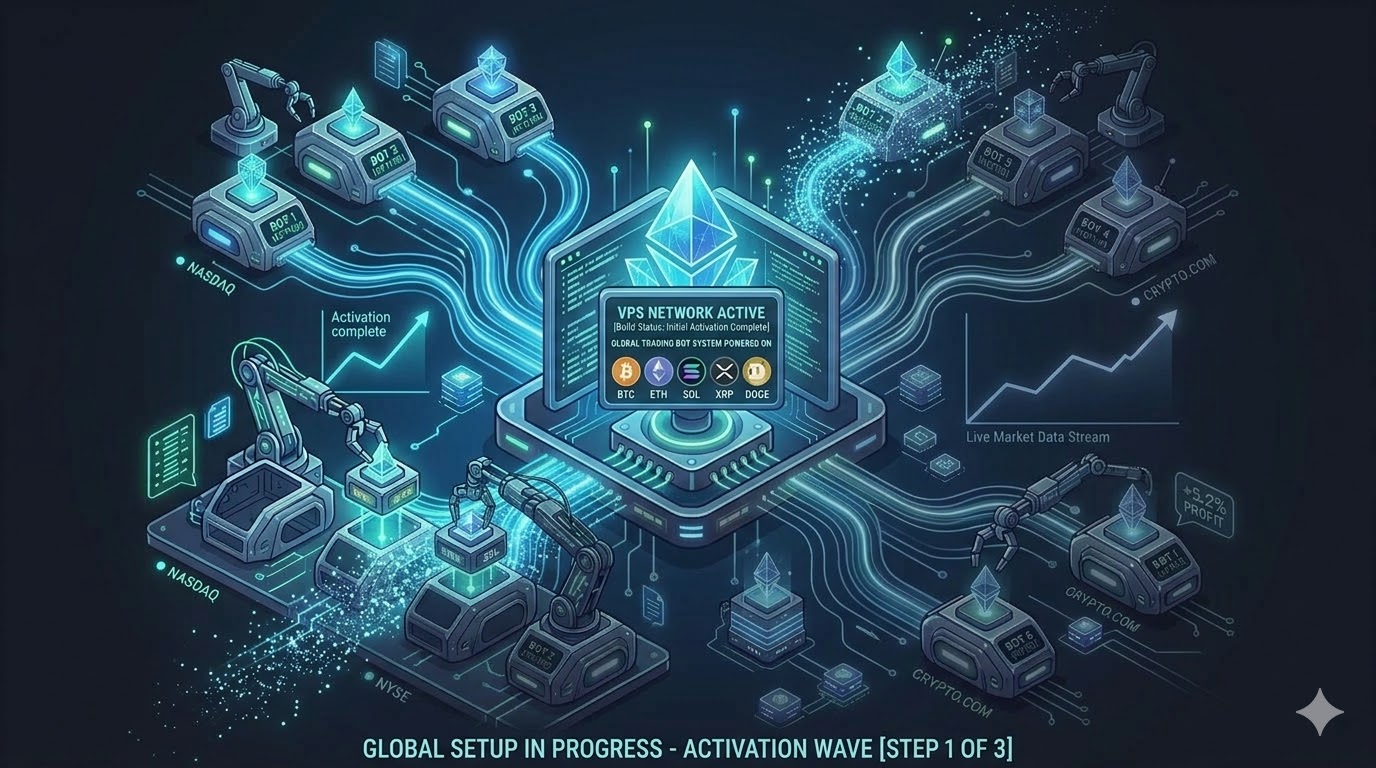
A VPS fixes all of that. It’s a computer in a data center with backup power, enterprise internet, and 24/7 uptime. Your bot runs whether you’re sleeping, working, or on a beach somewhere .
What You’ll Need Before Starting
Let’s be real about requirements:
You need:
- Basic comfort with typing commands (not a programmer, just not afraid of text)
- A crypto exchange account with API access
- About $10-15 for the first month
- 2 hours of focused time
You don’t need:
- A computer science degree
- Linux experience (I barely had any)
- Expensive hardware
Step 1: Pick Your Bot Software
First decision. Here are your options based on what I’ve tried:
Option A: Hummingbot (What I Use)
Open-source, free, runs on anything. Supports like 20+ exchanges .
Pros: Free, huge community, tons of strategies Cons: Command-line only (no pretty interface), learning curve
Option B: 3Commas / Cryptohopper
Cloud-based, paid, runs in your browser.
Pros: Easy, visual interface, works immediately Cons: Monthly fees, less control, can’t customize deeply
Option C: Custom Python Script
You write it yourself.
Pros: Complete control, free, learn a ton Cons: You have to write it yourself
My take: Start with Hummingbot. It’s free, runs perfectly on a VPS, and teaches you how things actually work .
Step 2: Choose Your VPS Provider
You need something reliable but not expensive. Here’s who I’ve used:
| Provider | Starting Price | Location Options | My Experience |
|---|---|---|---|
| Vultr | $2.50/month | Tokyo, Singapore, London, NYC | Solid, my daily driver |
| DigitalOcean | $4/month | Similar to Vultr | Great tutorials, slightly pricier |
| AWS | Free tier | Everywhere | Confusing for beginners |
| QuantVPS | $59/month | Specialized for trading | Overkill for starting |
For beginners: Pick Vultr or DigitalOcean. The $6-12/month plans are plenty .
Location tip: Choose a server close to your exchange. Binance? Pick Tokyo or Singapore. Coinbase? New York or London. This matters more than you think .
Step 3: Deploy Your VPS (10 Minutes)
Let’s use Vultr for this example because it’s what I know.
1. Sign up at Vultr.com Email, password, payment method. Done.
2. Deploy a new server Click “Deploy” → “Cloud Compute” → Choose location near your exchange
3. Choose OS Pick Ubuntu 22.04 LTS. Linux sounds scary but it’s actually easier for this stuff .
4. Server size Select the $6/month plan (2GB RAM). The $2.50 plan is too small for comfort.
5. Click “Deploy Now” Wait 60 seconds. Grab coffee.
6. Get your credentials Vultr will show you the IP address and password. Save both.
Step 4: Connect to Your VPS (5 Minutes)
This is where people get nervous. Don’t be. It’s just typing.
On Mac or Linux: Open Terminal. Type:
ssh root@your-server-ipIt’ll ask for the password. Paste it in (nothing shows on screen, that’s normal).
On Windows: Download PuTTY. Put in your IP, click connect, enter password.
You’re in. You now have a computer in some data center obeying your commands. Feels cool, right?
Step 5: Update Everything (3 Minutes)
First thing, update the system. Copy-paste these:
apt update && apt upgrade -y
apt install screen git ufw -y
screen lets you keep things running after you disconnect. git gets code. ufw is a firewall .
Step 6: Install Hummingbot
Now the fun part. Hummingbot has a one-line installer :
curl -fsSL https://raw.githubusercontent.com/hummingbot/deploy/main/setup.sh | bashThe script asks a few questions. For Telegram setup, you can say no for now if you want to keep it simple.
Wait 5-10 minutes while it downloads everything. Go stretch.
Step 7: Start Hummingbot
Once installed, start it:
cd hummingbot
./start.sh
You’ll see a colorful screen with the Hummingbot logo. Type connect to add your exchange API keys.
Step 8: Set Up Exchange API Keys (Critical!)
This is where people lose money. Pay attention.
On your exchange (Binance, Coinbase, etc):
- Go to API management
- Create a new API key
- IMPORTANT: Only enable “trading” permissions. NEVER enable “withdrawal” .
- Copy the key and secret
Back in Hummingbot:
Type connect binance (or your exchange). Paste the keys when prompted.
Test with a tiny amount first. Like $10 tiny.
Step 9: Keep It Running After You Leave
If you disconnect now, the bot stops. Here’s the trick:
Method 1: Screen (Simpler)
screen -S hummingbot
./start.sh
Press Ctrl+A then D to detach. The bot keeps running. To come back: screen -r hummingbot
Method 2: Supervisor (More Professional) Create a config file:
nano /etc/supervisor/conf.d/hummingbot.confPaste this:
[program:hummingbot]
command=/root/hummingbot/start.sh
directory=/root/hummingbot
autostart=true
autorestart=true
stderr_logfile=/var/log/hummingbot.err.log
stdout_logfile=/var/log/hummingbot.out.log
Save, then:
supervisorctl reread
supervisorctl update
supervisorctl start hummingbot
Now your bot restarts automatically if it crashes .
Step 10: Monitor Without Staring at It
You don’t want to SSH in every hour. Set up basic monitoring:
Check logs:
tail -f /var/log/hummingbot.out.logTest latency to exchange:
ping api.binance.comIf it’s over 50ms, consider moving your VPS location .
Optional Telegram alerts: Hummingbot can send you messages. Follow their Telegram setup guide in the docs .
Common Mistakes I Made (Learn From Them)
Mistake 1: Using the $2.50 plan My bot ran out of memory within days. Spend the extra few bucks.
Mistake 2: Forgetting about timezones My bot started trading at 8 AM UTC. That was 3 AM my time. Perfect for sleeping, bad for monitoring. Set alerts.
Mistake 3: Enabling withdrawal permissions I didn’t do this, but I know someone who did. Bot got hacked, funds drained. Never give bots withdrawal access.
Mistake 4: No backup plan My VPS provider had an outage once. I had no backup. Now I keep a second bot on another provider as failover.
Simple Strategy to Start
Don’t get fancy day one. Here’s what worked for me:
Pure Market Making (Hummingbot’s simplest strategy)
Configuration:
- Exchange: Binance
- Pair: BTC-USDT
- Spread: 0.5% (buy 0.5% below market, sell 0.5% above)
- Order amount: $20
Run this for a week with tiny amounts. Watch how it behaves. Learn before you scale.
The Best Option for Beginners
Vultr ($6/month) + Hummingbot + Screen + Paper trading for 2 weeks
This combo costs almost nothing, teaches you everything, and won’t blow up your account while you learn .
Start with paper trading (simulated money). Hummingbot supports it. Make mistakes when they don’t cost you.
The Best Option for Advanced Users
Multiple VPS instances across different regions + Supervisor + Telegram monitoring
When you have real money at stake, you want:
- A primary bot in Tokyo (if trading Binance)
- A backup in Singapore
- Automated restart on failure
- Alerts to your phone
This is overkill for year one. But eventually, you’ll want it.
My Final Advice
Setting up your first bot on a VPS feels intimidating. I remember staring at the black screen thinking “what have I gotten into.”
But honestly, it’s just following steps. The VPS providers made this stuff easy. The bot software improved a ton. You’re not pioneering anything — thousands of people have done this before you.
Start small. Test everything. Let it run for a few days while you watch. Then slowly increase.
And the next time your home internet goes out at 3 AM? You’ll be sleeping peacefully while your bot keeps printing money in some data center on the other side of the world.
That feeling is worth the setup time.